KB: How to create a Wizard Form?
NOTE: Due to Microsoft rewriting the Windows Forms Designer in Visual Studio 2022, custom designers created for the .NET Framework designer are not currently supported. As a result, the Wizard Library's custom designer does not function in Visual Studio 2022 or later.
To create a new Wizard Form, start by creating a new standard Winform in Visual Studio.
When the source files have been generated, edit the main .cs file for the newly created form.
Add "using WizardLibrary;" to the top, and change the base class from "Form" to "WizardForm":
using WizardLibrary;
namespace TestApp
{
public partial class Form1 : WizardForm
{
public Form1()
{
InitializeComponent();
}
}
}
If you switch to the Form Editor, it should now reload as a Wizard Form, where you can now edit the form as any other normal form.
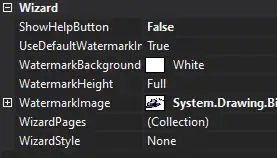
You can edit the main wizard form properties to set the style you wish, as well as editing your pages.
You can create a new page by following this guide for How to add a new wizard page?
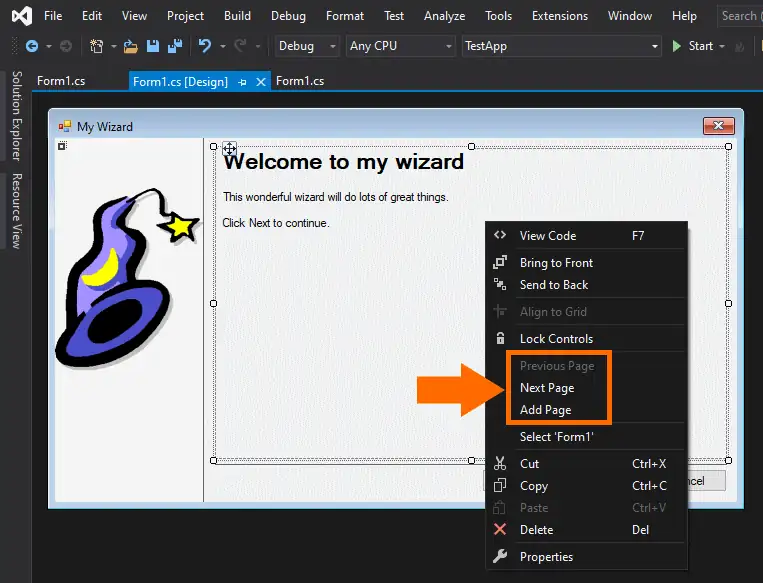
The easiest way to create a new wizard page is to right-click the wizard form and select 'Add Page' from the context menu:
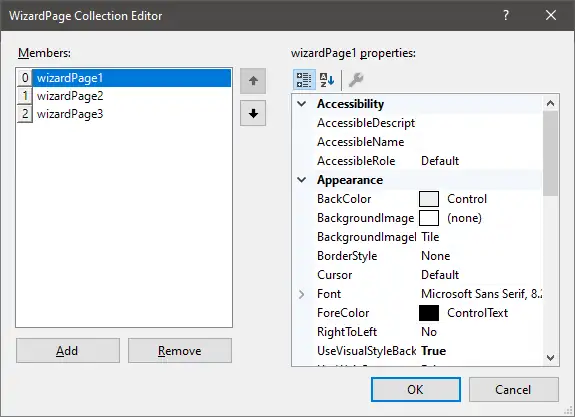
Alternatively, you can access the WizardPage Collection Editor via the WizardPages property of the wizard form properties: